Picture this: It's two weeks after your wedding. You've seen the professional photos, but you know your guests captured dozens of candid moments you haven't seen yet. The problem? Those photos are scattered across 100+ phones, and getting everyone to actually send them feels impossible.
QR code table cards solve this problem elegantly. Place one on each table, guests scan with their phone camera, and photos flow in automatically. No app downloads. No group texts. No chasing anyone down.
Here's exactly how to set this up for your wedding.
What Is a QR Code Table Card?
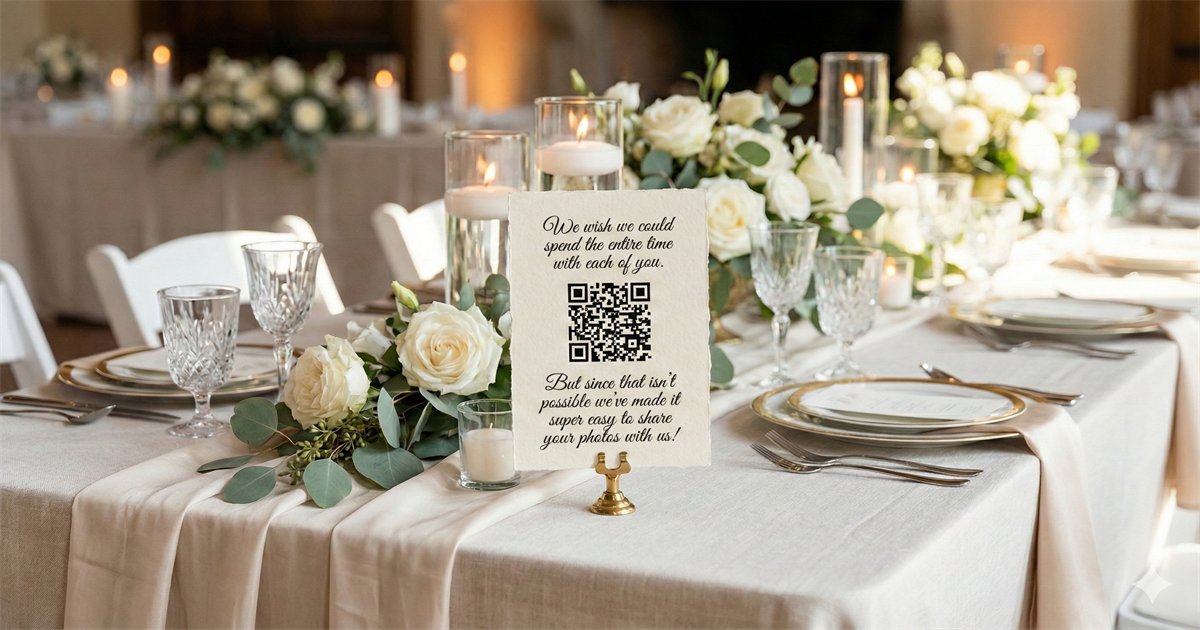
A QR code table card is a small printed card (usually 4x6" or 5x7") placed on each reception table. It includes:
- A friendly message asking guests to share their photos
- A QR code that links to your photo upload page
- Design elements that match your wedding aesthetic
When guests scan the code, their phone opens a simple upload page where they can select photos and send them to you instantly.
Why QR Codes Work Better Than Alternatives
You've probably considered other options: a wedding hashtag, a shared Google Photos album, or asking people to text you. Here's why QR codes outperform all of them:
QR Code Uploads
- Works on any smartphone
- No app or account needed
- Full quality photos
- All photos in one place
Wedding Hashtags
- Requires social media
- Photos compressed
- Private accounts excluded
- Scattered across platforms
Shared Albums
- Requires specific app
- Account required
- iPhone/Android conflicts
- Older guests struggle
The Key Insight
Every friction point you add cuts participation in half. App download? Half drop off. Account creation? Half again. QR codes eliminate both barriers completely. Your grandmother who can barely use her phone can still scan a QR code.
How to Create Your Table Cards (Step by Step)
-
1
Create your event page
Go to sendittoyou.com/event and set up your photo collection page. You'll get a unique URL and a QR code that links to it.
-
2
Download your QR code
After creating your event, you'll receive your QR code image. Save this to use in your table card design.
-
3
Design your card
Use Canva, Adobe Express, or any design tool. Add your QR code, a friendly message, and styling that matches your wedding.
-
4
Print your cards
Print at home on cardstock, order from Vistaprint/Canva Print, or use a local print shop. You'll need one card per table, plus extras for the bar, photo booth, and restrooms.
-
5
Place and display
Position cards where guests can easily see them while seated. Small card holders or frames work well. Place a few in high-traffic areas too.
Table Card Wording Ideas
The message on your card should feel warm and personal. Here are some options:
Classic & Elegant
"We wish we could spend every moment with each of you. Please share your photos of our special day by scanning the code below."
Casual & Fun
"Caught a great moment? We want to see it! Scan to share your photos with us."
Short & Sweet
"Share your photos with us! Scan the QR code below."
With a Personal Touch
"We can't be everywhere at once, but you can help us relive every moment. Please share your photos of our day."
Pro Tip: Include Instructions
Adding "Point your phone camera at the code" helps guests who aren't familiar with QR codes. Most modern phones scan QR codes automatically through the camera app, but not everyone knows this.
Design Tips for Your Table Cards
Match Your Wedding Style
Your table cards should feel like part of your wedding stationery. Use similar fonts, colors, and design elements as your invitations. If your wedding is minimalist, keep the card clean. If it's rustic, add some texture.
Make the QR Code Large Enough
The QR code should be at least 1.5" x 1.5" for reliable scanning. Larger is better, especially in dimmer reception venues. Test it before printing your full batch.
Consider Your Printing Method
- DIY printing: Use heavy cardstock (80-100 lb) for a professional feel
- Online print services: Vistaprint, Canva Print, and Moo offer good quality
- Local print shops: Often better paper options and faster turnaround
Card Size Recommendations
- 4x6": Standard postcard size, fits most holders
- 5x7": More visible, easier to read from across the table
- Tent cards: Stand on their own without a holder
Where to Place Your Cards
Don't just put them on dinner tables. Strategic placement increases participation:
- Reception tables: One per table, positioned near the centerpiece
- Bar area: People take photos while waiting for drinks
- Photo booth: Guests are already in photo-sharing mode
- Welcome table: Catch people as they arrive
- Restrooms: Private moment to upload without feeling rushed
- Dance floor perimeter: Action shots happen here
Getting the Most Uploads
Having the cards is only half the battle. Here's how to maximize participation:
Announce It
Have your DJ or MC mention the cards at least twice: once during cocktail hour and once before dancing starts. A quick "Don't forget to scan the QR codes on your tables to share your photos" goes a long way.
Lead by Example
Ask your wedding party to upload a few photos early. When guests see activity on the page, they're more likely to contribute.
Follow Up After
Send a text or email the next day with the link. People are more likely to upload when they're scrolling through their photos the morning after.
Set a Friendly Deadline
"Upload your photos within the next week" creates gentle urgency without being pushy.
Ready to collect your wedding photos?
Create your event page and get your QR code in under 2 minutes. No app for guests to download.
Create Your Event PageFrequently Asked Questions
Do guests need to download an app?
No. They simply scan the QR code with their phone's camera, which opens a web page. They upload directly from their camera roll. Works on any smartphone.
What about guests without smartphones?
They can visit your event page directly by typing the URL. Include the web address on your card as a backup option.
How do I get the photos afterward?
After the event you'll get an email with a link to your files. Open this on a laptop/desktop computer since there may be more photos than you want save on your phone. Then one click on your link and you'll be asked where to save your files. Choose the folder on your computer and one-by-one all your photos will download without any further clicks or prompts from you.
What if someone uploads something inappropriate?
You have full control. You can view all uploads and remove anything you don't want before sharing the collection. Simply put your mouse over any image and you'll see a delete button.
What if the venue has poor cell service?
Most venues have WiFi for guests. Include the WiFi network and password on a sign near the QR cards. Guests can also upload later when they have better signal.
How long are photos available?
Event pages include 30 days of storage (from date of purchase), plenty of time to download everything and create your wedding album.
The Bottom Line
Your guests are going to take photos at your wedding. The question is whether you'll ever see them. QR code table cards remove the friction that usually prevents photo sharing. No app to download, no account to create, no texts to send.
It takes about 10 minutes to set up your event page and design a table card. That small investment means you'll actually receive those candid shots of your grandmother laughing, your college friends reuniting, and the moments you missed while greeting guests.
Your wedding happens once. Make sure you capture it from every angle.